


Rotate pictures onlineTurn any photo the right way up
Rotate, straighten or fix a sideways picture in one tap, then save it at full quality.
or drop it here — pasting works too
Drop one picture to work on it, or a folder of them to turn the lot by their own tags.
No photo handy?
FreeNo sign-upPhotos stay on your device
Quarter turns, or any angle from −180° to 180°, computed once from the file you opened.
Press Left, Right or 180°. For a crooked horizon, drag the dial, draw a level line, or let the horizon finder suggest one.
Real results
From wonky to just right
Three taps
Upright in three taps
Choose a photo
Tap the button, drop it on the page or paste it. Any photo from your phone or camera works.
Turn it upright
One tap turns it a quarter. Drag the dial for a crooked horizon. You see the result as you go.
Download
Save the upright photo at full size, in the same format wherever the browser can write it. JPEGs keep their camera details.
All tools
Pick your job
Every way a photo can be the wrong way round, each with its own page.
- Rotate a PictureQuarter turns and free angles on one picture
 Batch RotateDrop a folder of scans or camera-roll photos
 Rotate 90°A precise clockwise quarter turn on opening
 Straighten a Crooked PhotoLine up the horizon and the photo levels itself
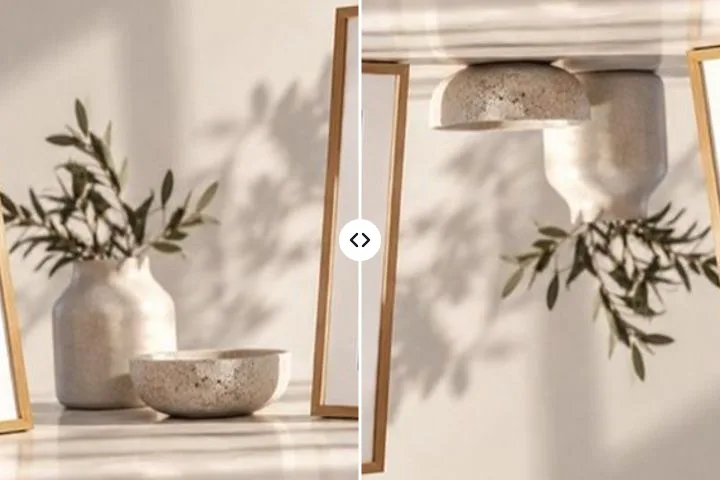 Fix a Sideways PhotoUpright on your phone, sideways online? Fixed for good
 Lossless JPEGTurn or mirror a JPEG with no loss in quality
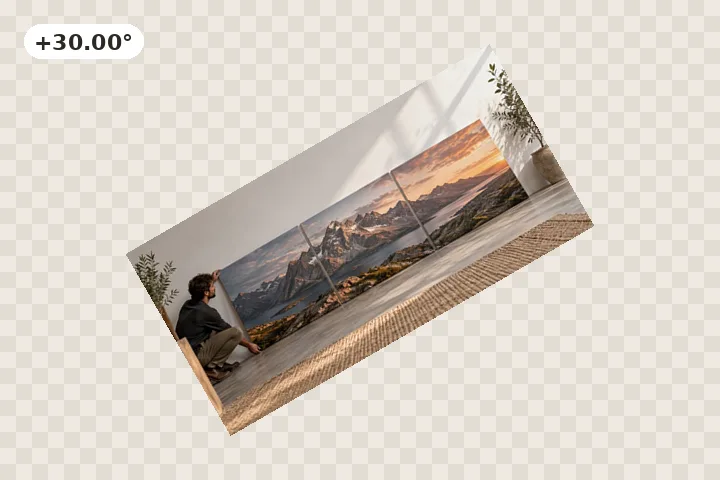 Rotate by DegreesType any angle and keep every pixel
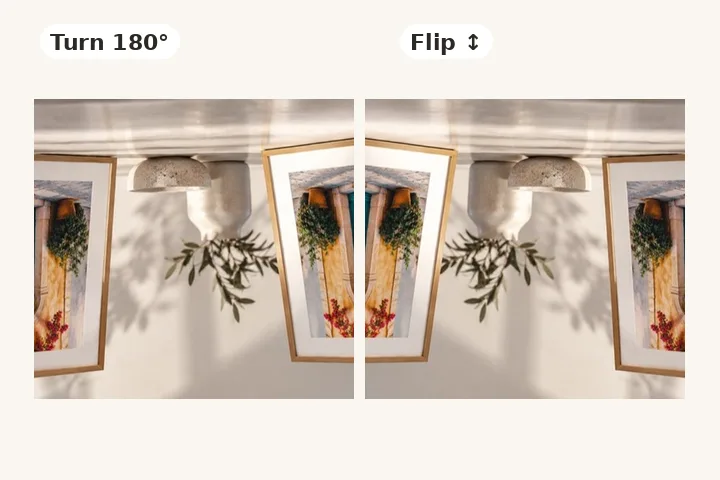 Upside DownA 180° turn and a vertical flip, side by side
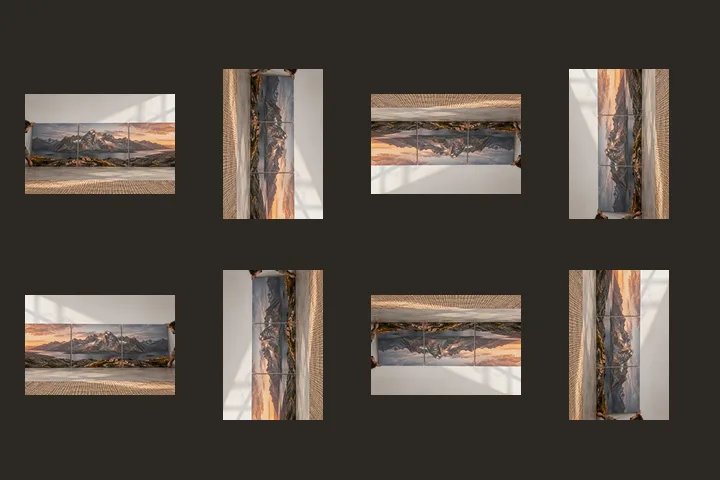 Rotate and FlipAll eight orientations of your own picture
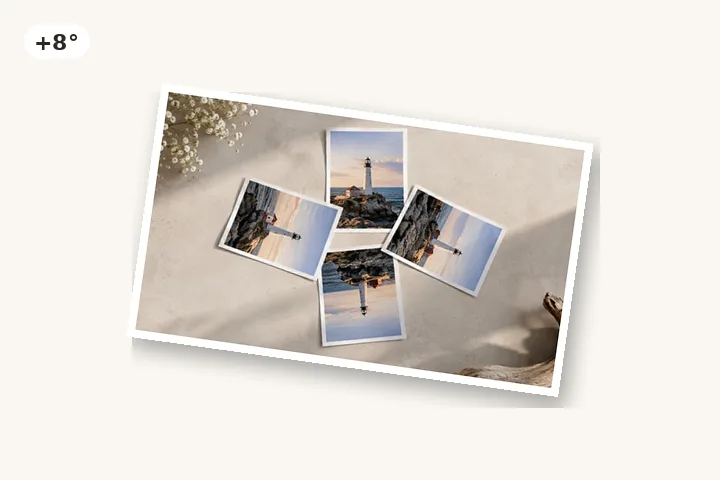 Tilt an ImageA few degrees of tilt with clear corners
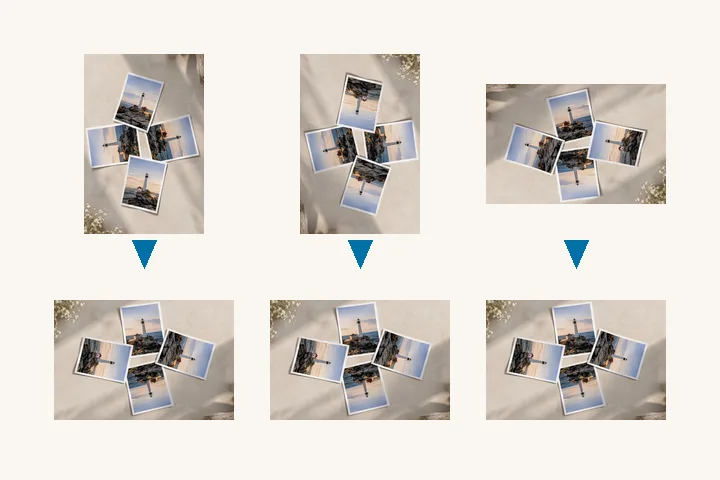 Auto RotateUpright by each file's tag; scans read from their text
 Rotate a PNG or LogoTransparency kept, quarter turns checked pixel by pixel
 Rotate an Animated GIFEvery frame turned, timing and loop kept
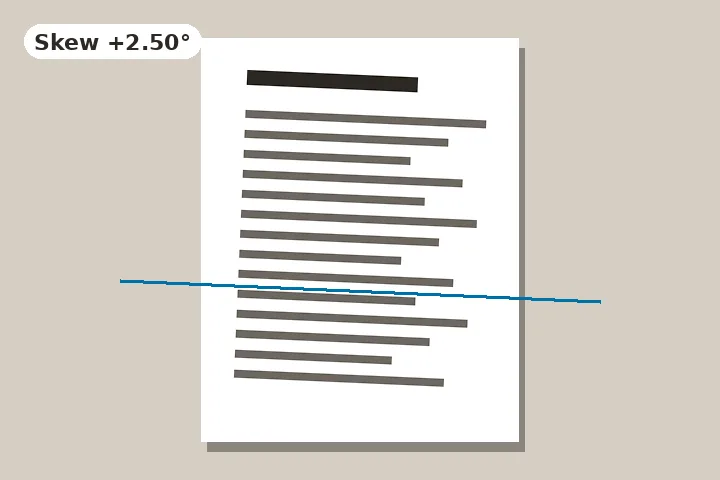 Straighten a ScanSkew measured from the text, every page edge kept
 Upright for UploadUpright and the right size for an online form
The disagreement
Why your photo is upright here and sideways there
Both panels below hold the same stored samples. Not a copy, not a rotated version — the same grid of numbers. The difference between them is one 16-bit integer in the file’s metadata, and whether the program looking at it bothered to read that integer.
Which means there are two repairs, not one
Turn the pixels. Rewrite the sample grid so it is genuinely upright and set the tag to 1. Every program then agrees, including the ones that never read the field. For a JPEG whose size allows it the turn is done on the compressed blocks, so nothing is decoded and no generation is lost; otherwise it costs one generation of re-encoding, and the page says which before you save.
Rewrite the tag. Change the field alone and leave every sample where it is. Not one pixel is decoded or re-encoded, so there is no generation to lose — but a program that ignores the field still ignores it, so this is the repair for a file whose pixels were already right and whose tag was lying.
Open a file in the tool above and it names which value it found and which of the two you want, before you press anything.
1 2↔ 3 4↔ 5↔ 6 7↔ 8
Each mark is the letter F as the file stores it. The four carrying ↔ include a reflection — the part of this field almost nobody expects.
What this page changes
There are two different things wrong with a sideways photograph and they need different repairs. Either the samples themselves are stored turned — the top of the picture running down the left edge of the array — or the samples are the right way up and one field in the file’s metadata, the EXIF Orientation tag, claims they are not. A quarter-turn button fixes the first case. In the second case it makes things worse, because it turns pixels that were already correct and leaves the lying tag in place.
This page does both jobs and keeps them apart. Turning the picture rewrites the sample grid; where the saved file is a JPEG carrying the original camera block across, the orientation field goes with it set to 1, and where the output holds no EXIF at all — a PNG or a WebP, or a JPEG saved with the metadata box unticked — there is no field left for anything downstream to act on. Either way nothing turns the picture a second time. Repairing the tag, on the orientation page, rewrites that one field, orphans the stale preview beside it, and leaves every sample exactly where it was. Which one you need depends on whether the picture already looks right somewhere, and the tool states what it found in the file before you touch a control.
Turning a photo, step by step
- Drop a file onto the panel above, paste one with ⌘V or Ctrl+V, or open the sample seascape.
- The file is decoded on this device; the orientation tag is read and applied before anything is drawn.
- Press Left 90°, Right 90° or 180° — or the L, R and U keys — for a quarter turn.
- For a crooked horizon, drag the dial under the picture, draw a line along something that ought to be level, or ask the horizon finder for a suggestion you can accept or ignore.
- Choose the frame — crop to the original shape, the largest rectangle, expand to keep every pixel, or keep the size — and what fills any exposed corner. The readout says what each one costs.
- Press Save rotated file. The full-resolution pass runs at that moment, from the same numbers the preview was drawn from.
Files this page reads and writes
JPG, PNG, WebP, AVIF, GIF, BMP, TIFF and ICO are decoded here, TIFF through a decoder fetched the first time a TIFF arrives; HEIC pulls a WebAssembly codec on the same terms and never on a page view. What comes out keeps the format that went in wherever a browser can write it — JPG, PNG and WebP — and where it cannot, the substitute is named on the page before you save rather than discovered in a downloads folder afterwards.
And a candid list of what it will not do:
- A free-angle rotation resamples every pixel. The picture is straighter and very slightly softer, and no setting here avoids that — only a multiple of 90° is free. A JPEG quarter turn is the case where “free” is literal: the compressed blocks are moved without decoding, and the file is checked after it is written.
- Where a file has no orientation tag, this page does nothing and says nothing. A portrait photograph and a photograph lying on its side are the same array of numbers, and nothing short of understanding what is in the frame can tell them apart — so a missing tag is left missing rather than guessed at.
- A CMYK JPEG is declined with the reason named. No browser decodes one correctly, and changing somebody’s colours as a side effect of turning their picture is a worse outcome than refusing the file.
- An arithmetic-coded JPEG is declined for the same kind of reason: it is a legal file and no browser carries a decoder for it, so there are no pixels here to turn.
- An animated GIF opened here is turned as a single frame. The animated GIF page turns every frame instead, keeps each frame’s delay and the loop, and reads the written file back to check them.
- A 16-bit TIFF or PNG is turned at eight bits per channel, because that is the depth a browser canvas holds. A multi-page TIFF uses page one, and the tool says which page it took.
Questions people ask about rotating images
Does rotating a JPEG lose quality?
Not for a quarter turn, when the picture's size allows it. A JPEG is stored as 8×8 blocks of compressed coefficients, and a 90° or 180° turn only has to move those blocks and rearrange the numbers inside them — nothing is decoded or rounded. The page does that, then reads the written file back and compares every coefficient with the original before it says "written without loss". If the width or height is not a whole number of blocks on the edge that has to move, it says so first and offers to trim that strip (at most 15 px); otherwise the file is re-encoded and the readout says "second generation". A free angle always resamples, in any format.
Why is my photo sideways on the website when it is upright on my phone?
The camera did not turn the pixels when you turned the phone. It stored them as the sensor read them and wrote a field called Orientation saying how far round they need to go. Your phone reads that field; a great many upload forms, document viewers and email clients do not. Open the file on the orientation page and it will tell you which value it found and offer the repair that ends the disagreement.
What does the trim percentage beside the save button actually mean?
It is the share of the picture's area that leaves the frame when the corners are cropped inward. Turning a rectangle by a few degrees puts triangular gaps at four corners, and the largest rectangle of the original shape that still fits inside is smaller than what you started with. The figure is computed from the geometry rather than estimated, and the pixel dimensions beside it are the exact dimensions the saved file will have.
Can I turn a picture and keep the camera information?
For a JPEG, yes, and it is on by default. The original EXIF block is lifted out of the file you opened and put into the file that is written, with the orientation field set to 1 and the embedded preview thumbnail unlinked so no file manager shows you a stale sideways square. Untick the box beside the quality slider and the saved file carries no metadata at all, which is the honest way to drop a GPS position.
Can I mirror the picture as well as turn it?
Yes. Mirror and Flip sit under the quarter turns (keys H and V), and the rotate-and-flip page shows all eight orientations of your picture side by side. A JPEG whose size allows it is mirrored block by block without loss. A mirror is not a turn: rotation moves every pixel around a centre and can always be undone by rotating back, while a mirror reverses handedness, so text reads backwards. Pick a mirror only when the picture really is reversed — a selfie camera, a scan of a transparency — not when it is merely upside down.
Can I do a whole folder at once?
Yes, on the batch page. It reads the orientation field of every file first, corrects only the ones that claim to be turned, copies the already-upright files through byte for byte rather than re-encoding them for nothing, and hands back a ZIP with a line saying what happened to each. A file with no tag is treated as upright and given only the turn you asked for — with no turn chosen it is copied through untouched — and its row says "No tag" rather than pretending one was read.
What the output format costs
The file that comes out is written by the browser’s own encoder, and which one is available decides what you get. A JPEG turned by a free angle is re-compressed at the quality you set, a second generation; a JPEG turned by a quarter, where its size allows, is written without loss by moving its compressed blocks; a PNG is written without loss and is frequently several times the size of the JPEG you opened; a WebP sits between the two and is the only one of the three that keeps an alpha channel while still compressing photographic detail properly. Where a format arrived that no browser can write — AVIF, BMP, TIFF, ICO, HEIC — the substitute is named above the save button, before you press it.
Padding outward has a cost that is easy to miss: the wedges at the four corners need a colour, and a format with no alpha channel has to be given one rather than left transparent. That is why a padded turn saved as JPEG comes back with white corners and the same turn saved as PNG or WebP comes back with nothing in them. Cropping inward avoids the question and pays for it in area instead, which is the trim figure printed beside the save button.
Where else to go
Three other surfaces here open on the same engine with a different first screen, because three different sentences get typed into a search box and each of them deserves a different thing to be looking at one second after arriving.
- Straighten a crooked photo opens with the guide armed and the grid on, for a horizon or a leaning building.
- Fix the orientation tag reads the field before offering anything, and explains which of the two repairs the file in front of you actually needs.
- Correct a folder at once for a camera-roll dump or a stack of scans that all carry the same defect.
- If you would rather read than click, why photos turn sideways online explains the whole mechanism in about four minutes, and the eight orientation values draws what each legal reading of the field means inside the file.
- Both of those, with a note on what each covers and what neither of them does, are indexed on the reference page.