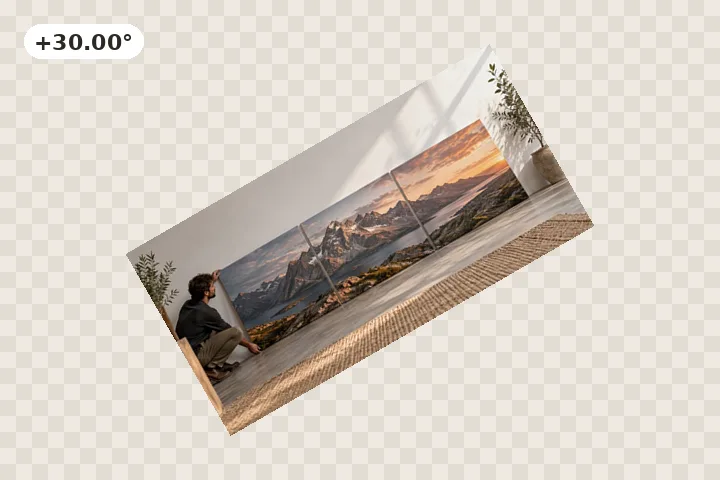
Rotate an image by degreesAny angle you like
Type 45°, 30° or 7.5° and keep the whole picture on a slightly bigger canvas.
or drop it here — pasting works too
Drop one picture to work on it, or a folder of them to turn the lot by their own tags.
No photo handy?
FreeNo sign-upPhotos stay on your device
Type the angle. The canvas grows so every pixel of the picture stays, and the corners are left clear.
The angle field has the cursor when a picture opens. Arrow keys step a tenth of a degree, Shift a whole degree.
Typed angles, and what happens to the corners
A picture turned by 30° needs a bigger rectangle to sit in: its corners swing outside the old frame and four empty wedges open between the picture and the new edge. This page starts with the frame that keeps everything — Expand — because a typed angle usually means the picture is going into a layout where the whole of it should be visible. The wedges start transparent; a JPG cannot hold transparency, so a JPG opened here saves as PNG unless you give the corners a colour.
The number in the field is the exact angle used. It goes to two decimal places, the dial beside it catches the round angles (0°, ±45°, ±90°, ±135°, 180°) within a third of a degree, and the readout under the picture states the output size and how much of the frame the corners fill before anything is written.
Picking the frame
- Expand keeps every source pixel and grows the canvas; the corners are filled.
- Keep size holds the original width and height; the turned corners are cut off and the wedges filled.
- Crop keeps the original shape and cuts inward until no wedge is left; nothing is invented.
- Largest finds the biggest rectangle of any shape inside the turned picture.
A crooked horizon is a different job — the right angle comes from the picture, not from a number you already know. Straighten measures it for you. For why one turn costs one resample and no more, see rotation quality, explained.
Questions about this page
How do I rotate an image 45 degrees?
Open it, type 45 in the angle field (or press the +45° chip) and save. The canvas expands to the turned picture's bounding box, so all four corners of the original stay in the file and the four new corner wedges are transparent — or a colour you pick, if the file is going somewhere without transparency.
Can I rotate an image without changing its size?
Yes: choose Keep size under Canvas. The saved file has the same width and height as the one you opened; the turned corners are trimmed and the wedges filled. The page states the share of the picture that leaves the frame before you save.
Why did my canvas get bigger?
A rectangle turned by anything other than a multiple of 90° no longer fits in its own frame. Expand keeps every pixel by growing the canvas to fit; Crop and Largest keep the frame tight by cutting into the picture instead. Each choice shows its output size from your own picture.
Does trying several angles lose quality?
No. The angle is one number applied once to the original pixels when you save, however many values you typed on the way. Twenty attempts cost one resample, not twenty.
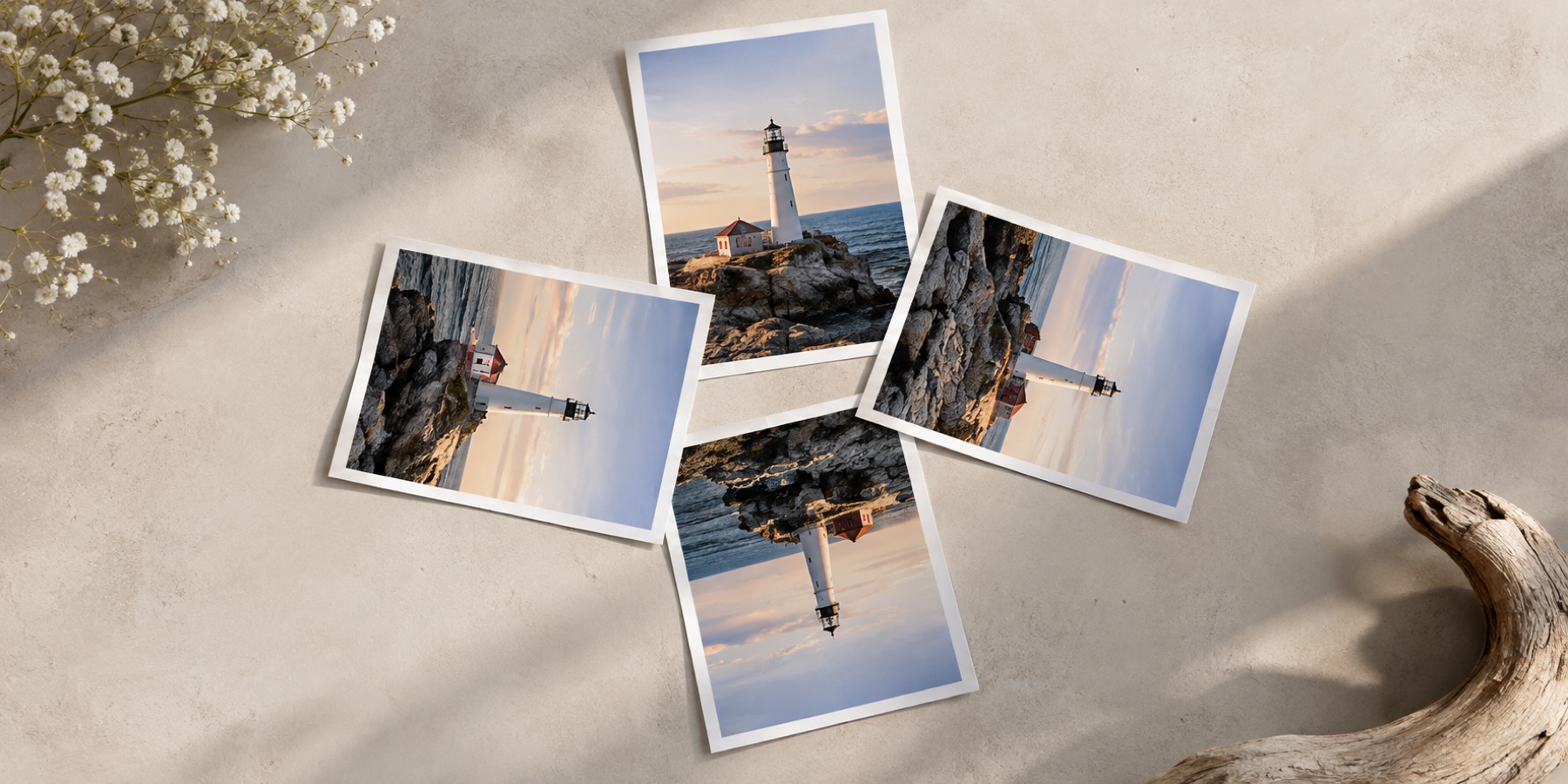
Rotate By Degrees