Guide · rebuilt 24 October 2026
Rotate a folder of scans consistently
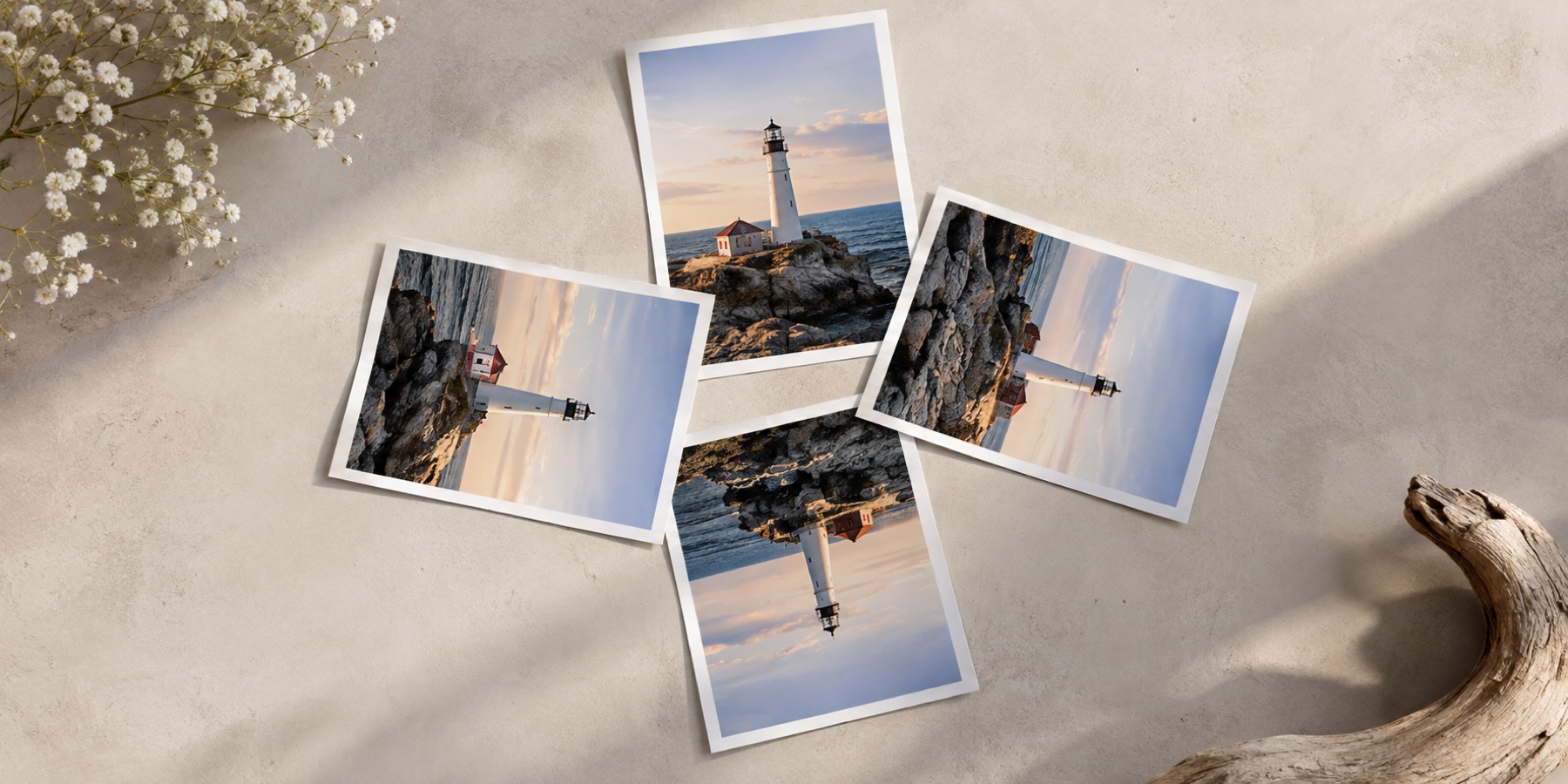
A folder is not a list of identical files. A stack fed through a document scanner may have one landscape insert; a folder pulled off a phone holds photos tagged three different ways and screenshots tagged not at all. A single “rotate all 90°” command gets some of them right and turns the rest the wrong way. The method below avoids that, and leaves a record you can check before you replace any originals.
1. Read before you turn
Every JPEG from a camera or phone carries an orientation tag that records how the device was held. Reading it costs sixteen bits per file and decodes nothing, so read the whole folder first. The batch table shows each file’s tag — or “No tag”, which is a different fact from “tag 1” — before anything is done.
2. Turn each file from its own upright
The turn you ask for is measured from the way each file is meant to be seen, not from its stored array. Asking for “upright only” therefore moves each stored array by a different amount:
| Arrived tagged | Its stored array turns |
|---|---|
| No tag | 0° (copied unchanged) |
| 1 · upright | 0° (copied unchanged) |
| 3 · rotated 180° | 180° |
| 6 · rotated 90° clockwise | 90° |
| 8 · rotated 90° anticlockwise | 270° |
| 2, 4, 5, 7 · include a mirror | the turn plus the mirror the tag records |
Mixed folders come out consistent because each row moves by what its own tag needs, and the table shows how far.
3. Handle the files with no tag
Scanner output and screenshots usually carry no tag, and then nothing in the file says which way up it is. For pages of writing, the auto-rotate page reads the direction of the text on each untagged file and suggests a quarter turn, pre-ticked only when most lines agree. Untick anything you disagree with; nothing is applied without a tick. A folder of untagged scans that are all the same way round can simply be given one fixed turn on the batch page.
4. Choose where the turn is written
- Lossless bake: a JPEG's compressed blocks are moved, not decoded, and each row says lossless only after the written file is compared with the original. The safest choice for an archive.
- Bake the pixels: decode, turn, write the tag as 1. Every program agrees with the result; a JPEG costs a generation.
- Move the tag only: two bytes change and nothing is decoded. Programs that ignore tags are unmoved, so this suits a photo library, not a portal.
5. Verify, then keep the record
- Every written file is read back: its tag, and its size decoded with no tag applied. The row says Verified only when both are what the run meant.
- Download the ZIP. Choosing a whole folder keeps its sub-folders inside the archive.
- Open manifest.csv from the ZIP: one line per file, failures included.
- Spot-check a few files at the place they are going before you delete any original.
The manifest’s columns:
source, bytes_in, tag_in, route, stored_turn, output, bytes_out, tag_out, lossless_proven, verified, result, reason
Files are worked one at a time, so only one full-size picture is in memory at once; on a phone, runs of about 25 files are safer, and a file that fails is marked and the run carries on. A ZIP is limited to 4 GB, so a larger folder is run in halves.